
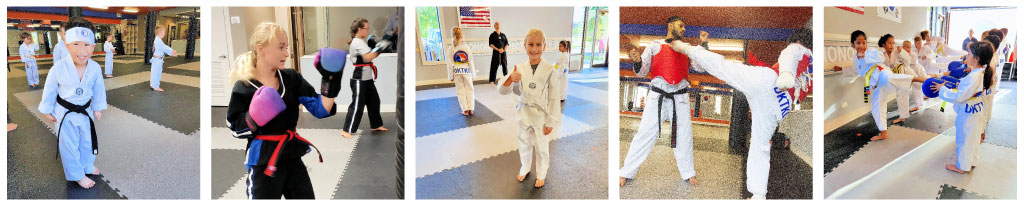
Classes at DKFA are most fun when everyone has room to move and get attention from our instructors. That’s why reservations are required! Book your spot in advance via the Zen Planner app or Member Portal, and if you can’t make it, cancel so someone else can join. No drop-ins, so plan ahead and secure your spot!



- Log In: Use your Member Portal credentials. (same as Zen Planner)
- Go to Calendar: Select CALENDAR from the menu and make sure ALL CALENDARS is chosen from the dropdown.
- Select the Student: Choose the correct PROFILE for the student you’re scheduling. Their program’s classes should appear.
- Reserve the Class: Click on the desired class, double-check that the correct family member is selected, and hit RESERVE.
If you don’t see your student’s classes listed, please email us and we’ll check your account.



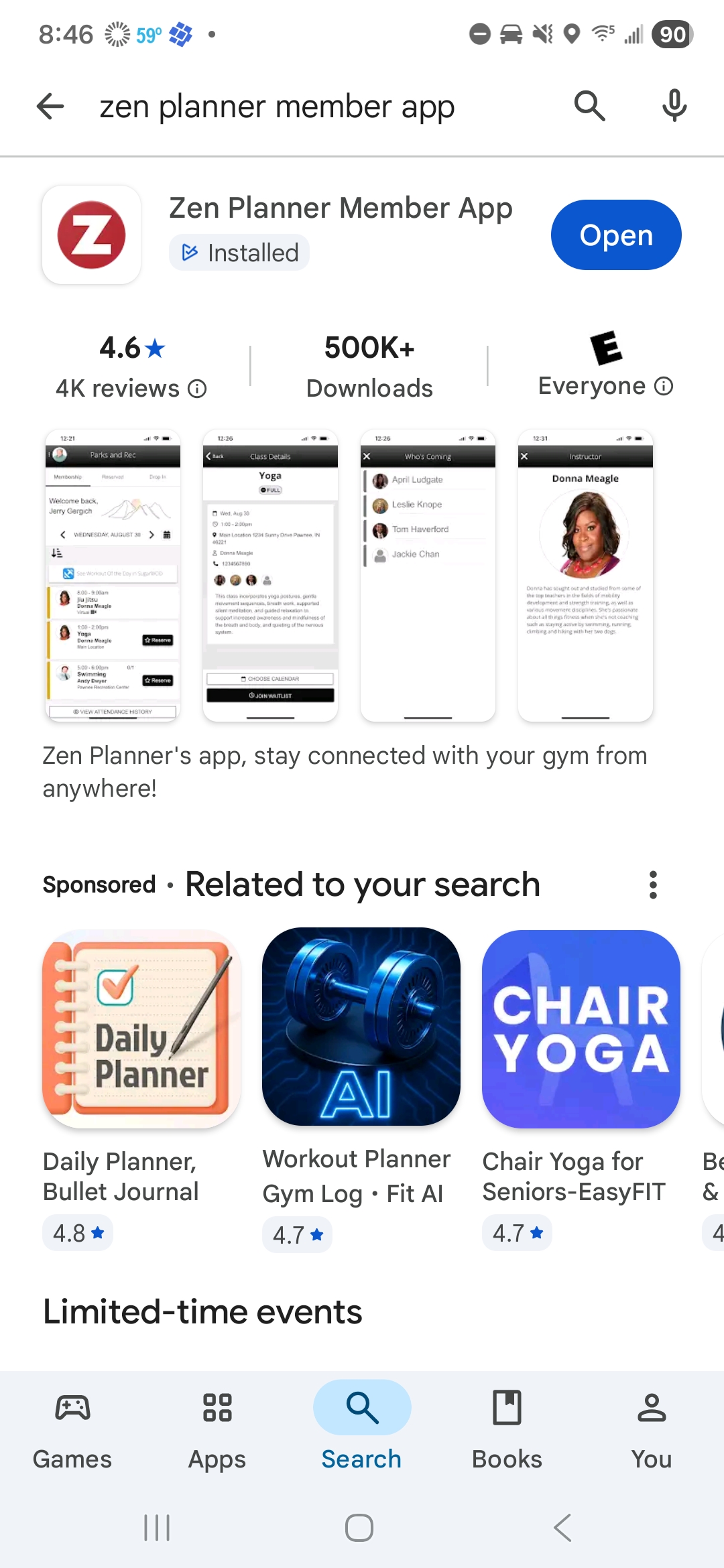
- To get started, open your device’s app store and search for Zen Planner Member App — be sure to select the Member App, not the Staff App. Once downloaded, this app allows you to schedule classes, review your account details, and access curriculum review materials for your student’s rank. Log in using your registered email address. If you’ve forgotten your password, simply click the reset link provided in the app, or contact us and we’ll be happy to reset it for you.
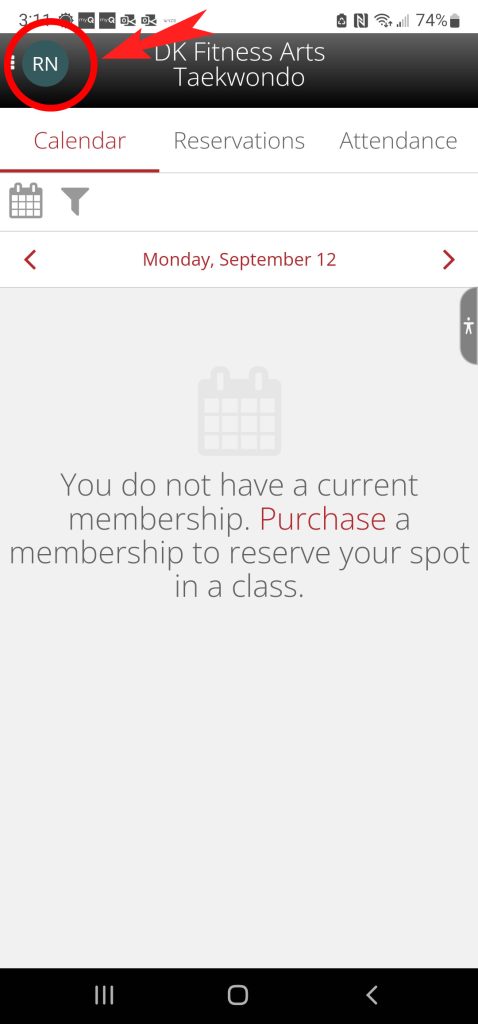
- When you first log in, the system automatically loads your profile by default. If you are not the student, your account will not have an active membership, and therefore, no classes will appear. In this case, you’ll see a message indicating that you do not have a current membership. To switch profiles, look to the top left corner of the screen, where you’ll find a green circle displaying the head of household’s initials. contact us and we’ll be happy to reset it for you.
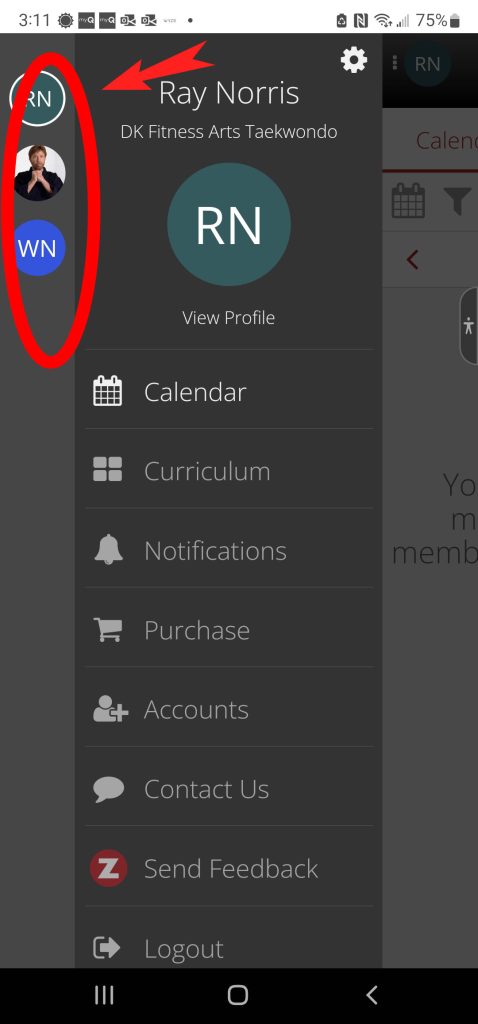
- After clicking on your initials, you will be able to view all family members associated with your account. Current students should see their student ID photos displayed, while new students may only see their initials for the first few days as their profiles are being updated. Please note that these photos are managed by our system and should not be customized or changed.
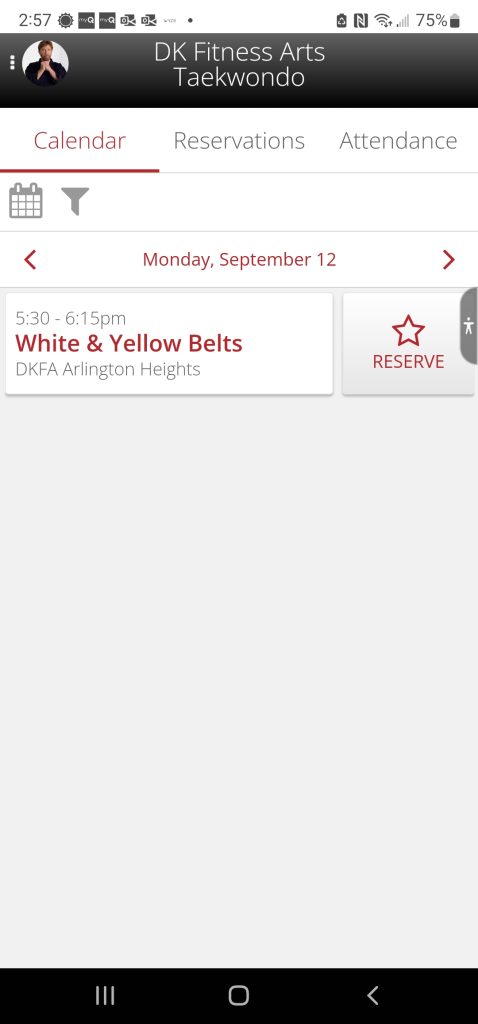
- Once you have selected the correct profile, all available classes for that student will appear in the calendar. To reserve a class, simply click the “Reserve” star next to the class you’d like to attend. You can make reservations up to two weeks in advance and no later than four hours before the class start time. If you are unable to attend a class you’ve reserved, please remove your reservation. This allows you to book another class and gives other students the opportunity to reserve that open spot.
If you have any questions or concerns, please let us know.